DocsProduct workspace
Knowledge base
Organize shared knowledge, search its content and recover document revisions.
The Knowledge tab holds shared documents for the instance. Organize them in nested folders, and use the rich editor for headings, lists, tables, code and attachments. Articles open in read view; choose Edit to change them.
Acahti does not vendor a third-party wiki. The UI keeps the Plate rich editor already used for Work documents; folders, search, tags, backlinks and revision snapshots are instance-owned. Design cues came from BookStack, Outline and Docmost; their application code was not copied.
Write and organize#
Create an article with Create → Blank document. Give it a meaningful title, describe the user goal, and include links to the relevant ticket, repository or iteration. Move it with the folder selector. Rename folders in the folder view. Deleting a nonempty folder is rejected so that its articles are not removed accidentally.
A document can also present one uploaded file (at most 200 MiB). Choose Create → Upload file, or drop files or whole folders on the list, to turn each PDF, Word, Excel, PowerPoint or image file into its own document in the current folder; dropped folders become knowledge folders. Uploading bytes that are already in the knowledge base opens the existing document instead of making a copy. The document opens on its file with Download, a full-size preview and a Notes section for context. The table and folder tree show each document's type icon.
Edit files in the browser#
Word, Excel, PowerPoint, OpenDocument and PDF documents open in the embedded
ONLYOFFICE editor, in the page itself. People who can edit the document just
type: everyone with it open edits together and sees each other's cursors.
Changes are kept as you go; Acahti records them as a new revision when the last
editor leaves, every few minutes during a long session, and whenever someone
presses Save in the editor. Each saved version appears in Revision
history, and its text is indexed for search again. People with view access get
the same editor read-only. Legacy .doc, .xls and .ppt files open read-only;
save them as the current format to edit them.
If the document server is not available, the page shows the PDF preview instead. External links always show the read-only PDF preview.
Search covers the text inside PDF and Office files as well as titles, notes and tags. Text is extracted in the background by the compose Tika service shortly after upload; scanned images without a text layer are not searchable.
Share#
Share on a document offers three ways to pass it on:
- Send to chat posts the document as a card into a conversation. Members open it in Acahti. Sending a restricted document grants view access to the conversation's members, which only people who manage its access can do.
- Copy link copies the Acahti address for signed-in members.
- External link creates a read-only link for people without an account. A link expires after 7 days by default (30 days or never are the other choices), may require a password, and may forbid download. The address is shown once; the list shows each link's expiry, views and a Revoke button. Anyone who can read an instance-wide document can create one; restricted documents need someone who manages their access. Administrators turn external links off for the whole instance under Admin → Knowledge sharing, which makes every existing link unavailable at once.
A file sent in Chat can be previewed there and filed with Save to knowledge
base; the new document references the same stored file. Agents use
chat_share_document, knowledge_save_chat_file,
knowledge_share_link_create, knowledge_share_links and
knowledge_share_link_revoke.
Agents upload to POST /work/docs as multipart/form-data with file and
optional folder_id, title (defaults to the filename without its extension)
and body notes. Each
document reports its kind (markdown, pdf, word, excel, ppt, image,
html or file) and, for an uploaded file, file metadata for preview and
download. A Markdown file without notes becomes the document body.
By default a document is visible to every authenticated member of the instance
(visibility=instance). Open Access on an article to switch it to
Restricted, then grant individual members view or edit. The owner,
Work managers and organization administrators always retain full access.
Restricted articles are omitted from lists and search for everyone else; direct
links return not found. A folder is an organizational container, not an
access-control boundary. Do not put secrets in documents or attachments.
Search and cite#
Choose Search knowledge, enter a title or phrase and submit. Search covers titles and document bodies, supports Chinese literal matching and word-based full-text matching, and ranks title matches first. The global search page also finds tickets, todos, iterations and accessible repository resources.
Open a result to inspect the current document. Aidy cites the original page in its answers, so readers can check the evidence themselves.
Review and restore#
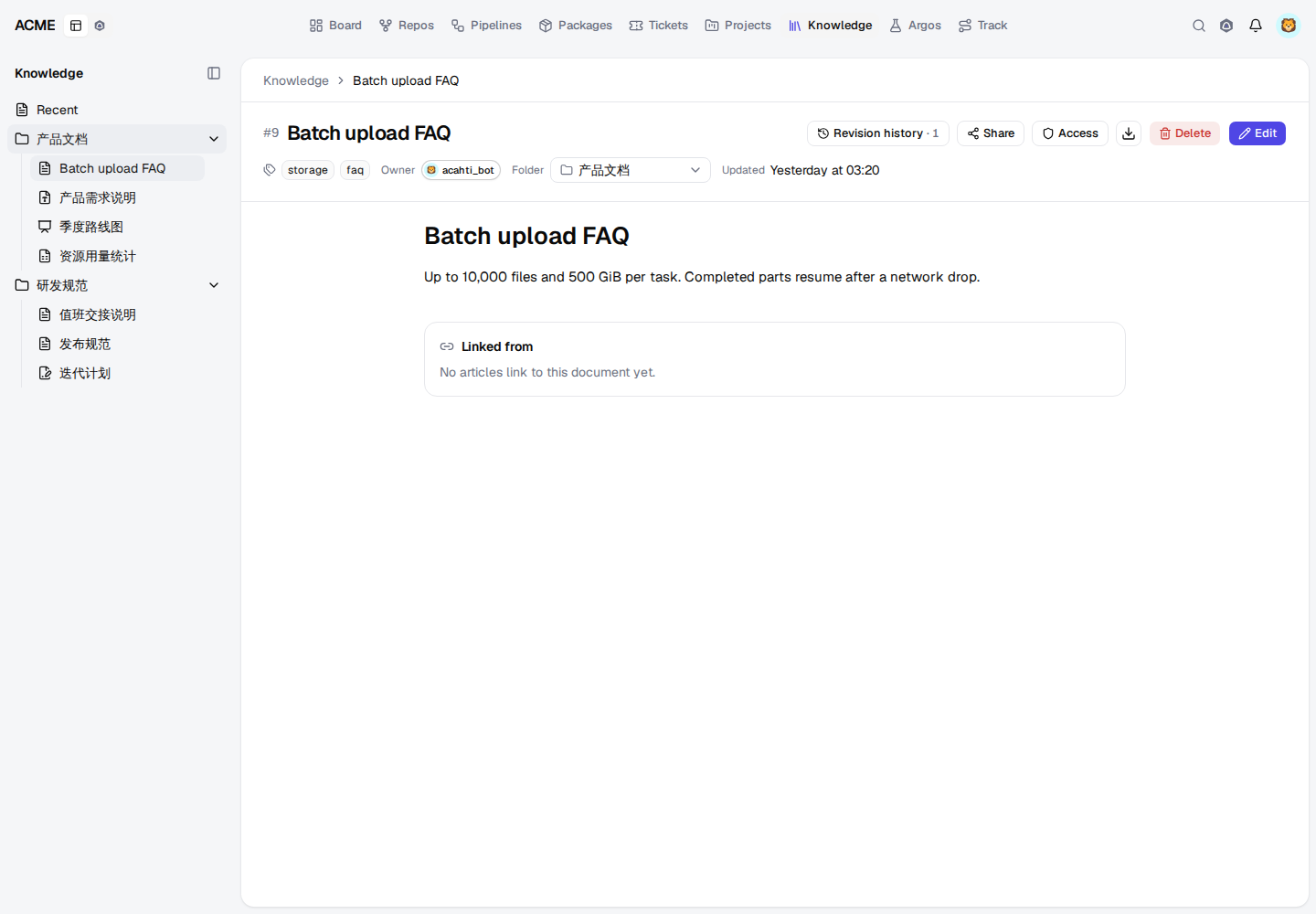
Open Revision history in the article header (top right). The menu lists retained revisions newest first. Choose a revision to preview it in a dialog, then Restore this revision to make that snapshot the current content. Restoring creates a new revision and keeps the intervening history; for a file document it also brings back the file that revision presented. If a snapshot pointed at a folder that was later deleted, restore clears the folder and still applies the title, body and tags. Deleting an article deletes its revision history as well; restoration applies to existing articles.
acahti mcp call search '{"q":"deployment","type":"document"}'
acahti mcp call knowledge_history '{"id":8}'
acahti mcp call knowledge_restore '{"id":8,"revision":2}'
acahti mcp call document_get '{"id":8}'
acahti mcp call document_update '{"id":8,"visibility":"restricted"}'
acahti mcp call document_grant_set '{"id":8,"login":"alice","role":"edit"}'
acahti mcp call document_grants '{"id":8}'
Document creation, updates, access grants, folders, attachments, search and
revision recovery are available through the shared MCP and REST catalog. Use
acahti mcp tools to inspect the installed server's exact operations.
Example screen#
Attachments and preview#
The editor accepts images plus PDF and Office files (Word, Excel, PowerPoint and OpenDocument). Images embed inline. Other files become attachment cards with Download and, when previewable, Preview. Preview always shows a PDF: native PDFs stream as stored; Office files are converted through the compose Gotenberg service and cached beside the original object. The original file is never replaced. Ticket, todo and chat attachments use the same preview surface. Identical bytes are stored once however many documents, comments or messages carry them; objects nothing references are removed after an hour.
Prototypes#
Upload an .html or .htm file where the cursor is (toolbar, drag or paste) and
the prototype shows in place, in reading and editing alike, with Full view
and Download. It runs in a sandbox with no access to Acahti: its scripts,
forms and dialogs work, but it cannot read cookies or storage, reach the page
around it or call Acahti as you. An embedded prototype is inert until you click
Click to use the prototype, so the wheel, trackpad and touch keep scrolling
the document over it; moving the pointer out, Escape or Done, scroll the
document hands scrolling back. Text after a prototype always follows it.
Outline and section links#
A document with headings shows an Outline beside it, like a navigation pane:
the headings by level, foldable, the section being read highlighted. Select one
to scroll there. Collapse the pane when you need the width (the browser
remembers); on narrow screens it opens from the Outline button. Hover a
heading and select # to copy a link to that section; opening the link scrolls
to it. Repeated headings get numbered anchors (details, details-1).
Tags, references and export#
Add comma-separated tags when editing an article. Tags are included in search and link to a filtered knowledge search. Linked from lists articles that reference the current document URL, helping readers follow related decisions. Download opens a menu to export the current title and content as Markdown, PDF (print dialog) or Word.
For agents: knowledge.mdEdit this page